
Chapter 41
Guideline for OnnxRuntime GenAI Windows GPU
Guideline for OnnxRuntime GenAI Windows GPU
This guideline provides steps for setting up and using the ONNX Runtime (ORT) with GPUs on Windows. It's designed to help you leverage GPU acceleration for your models, improving performance and efficiency.
The document provides guidance on:
- Environment Setup: Instructions on installing the necessary dependencies like CUDA, cuDNN, and ONNX Runtime.
- Configuration: How to configure the environment and ONNX Runtime to utilize GPU resources effectively.
- Optimization Tips: Advice on how to fine-tune your GPU settings for optimal performance.
1. Python 3.10.x /3.11.8
Note Suggest use miniforge as your Python env
conda create -n pydev python==3.11.8

conda activate pydev
Reminder If you have intall any about python ONNX library, please uninstall it
2. Install CMake with winget
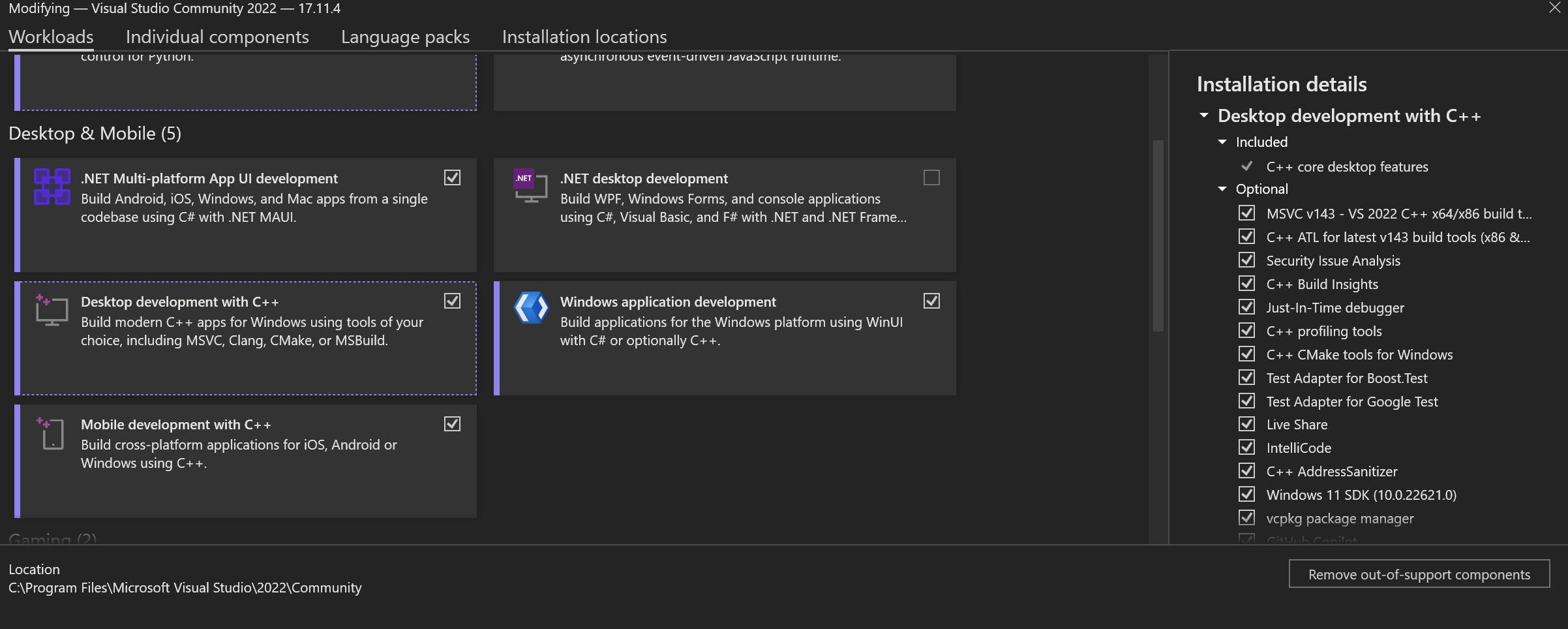
winget install -e --id Kitware.CMake3. Install Visual Studio 2022 - Desktop Development with C++
Note If you not want to compile you can skip this step
4. Install NVIDIA Driver
-
NVIDIA GPU Driver https://www.nvidia.com/en-us/drivers/
-
NVIDIA CUDA 12.4 https://developer.nvidia.com/cuda-12-4-0-download-archive
-
NVIDIA CUDNN 9.4 https://developer.nvidia.com/cudnn-downloads
Reminder Please use default settings with Installation flow
5. Set NVIDIA Env
Copy NVIDIA CUDNN 9.4 lib,bin,include to NVIDIA CUDA 12.4 lib,bin,include
-
copy 'C:\Program Files\NVIDIA\CUDNN\v9.4\bin\12.6' files to 'C:\Program Files\NVIDIA GPU Computing Toolkit\CUDA\v12.4\bin
-
copy 'C:\Program Files\NVIDIA\CUDNN\v9.4\include\12.6' files to 'C:\Program Files\NVIDIA GPU Computing Toolkit\CUDA\v12.4\include
-
copy 'C:\Program Files\NVIDIA\CUDNN\v9.4\lib\12.6' files to 'C:\Program Files\NVIDIA GPU Computing Toolkit\CUDA\v12.4\lib\x64'
6. Download Phi-3.5-mini-instruct-onnx
winget install -e --id Git.Git

winget install -e --id GitHub.GitLFS

git lfs install

git clone https://huggingface.co/microsoft/Phi-3.5-mini-instruct-onnx
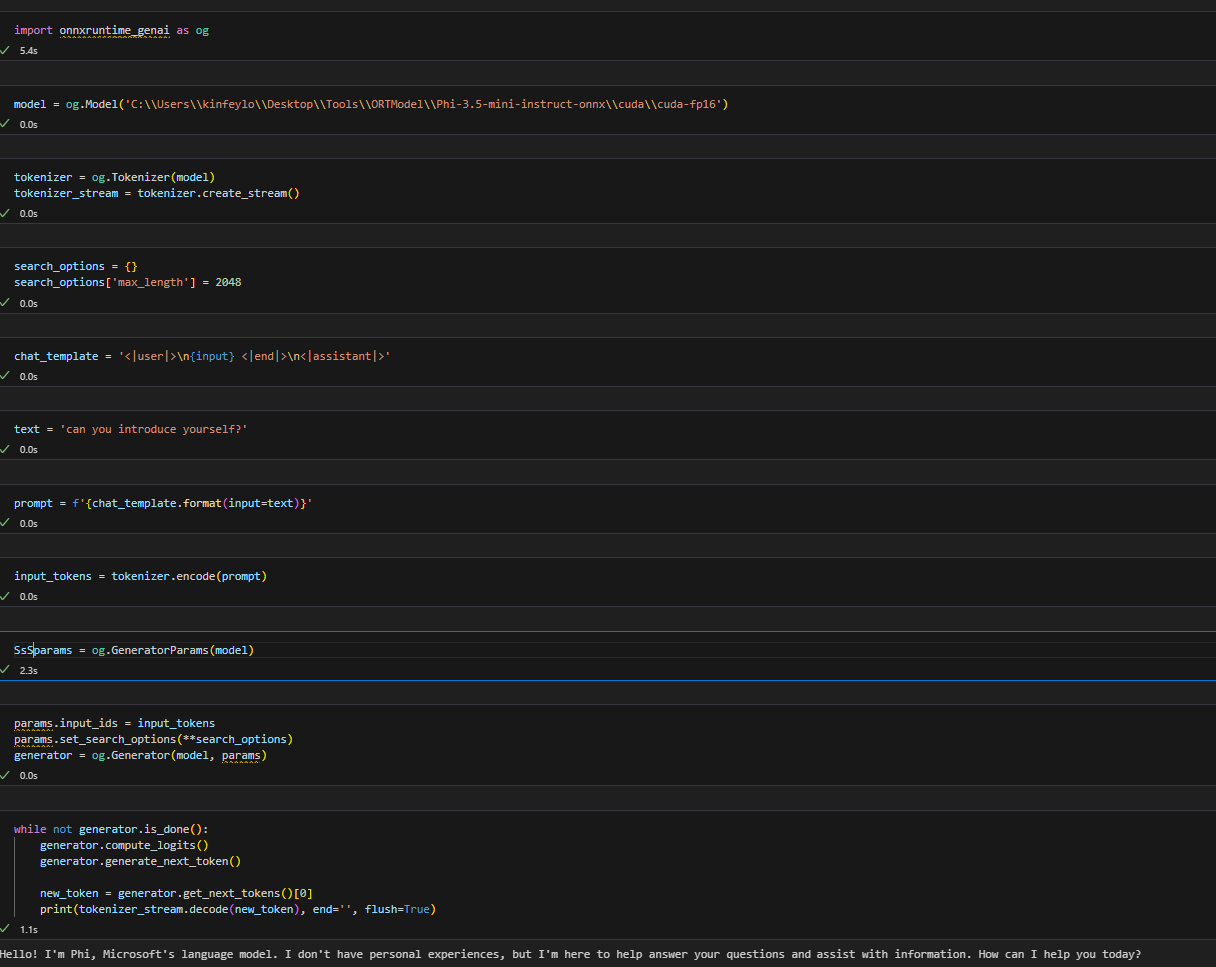
7. Runing InferencePhi35Instruct.ipynb
Open Notebook and execute
8. Compile ORT GenAI GPU
Note
- Please uninstall all about onnx and onnxruntime and onnxruntime-genai firstly
pip list Then uninstall all onnxruntime libraries i.e.
pip uninstall onnxruntime

pip uninstall onnxruntime-genai

pip uninstall onnxruntume-genai-cuda- Check Visual Studio Extension support
Check C:\Program Files\NVIDIA GPU Computing Toolkit\CUDA\v12.4\extras to ensure C:\Program Files\NVIDIA GPU Computing Toolkit\CUDA\v12.4\extras\visual_studio_integration is found.
If not found check other Cuda toolkit driver folders and copy the visual_studio_integration folder and contents to C:\Program Files\NVIDIA GPU Computing Toolkit\CUDA\v12.4\extras\visual_studio_integration
- If you not want to compile you can skip this step
git clone https://github.com/microsoft/onnxruntime-genai-
Unzip onnxruntime-win-x64-gpu-1.19.2.zip ,and rename it to ort,copy ort folder to onnxruntime-genai
-
Using Windows Terminal,go to Deveopler Command Prompt for VS 2022 and go to onnxruntime-genai
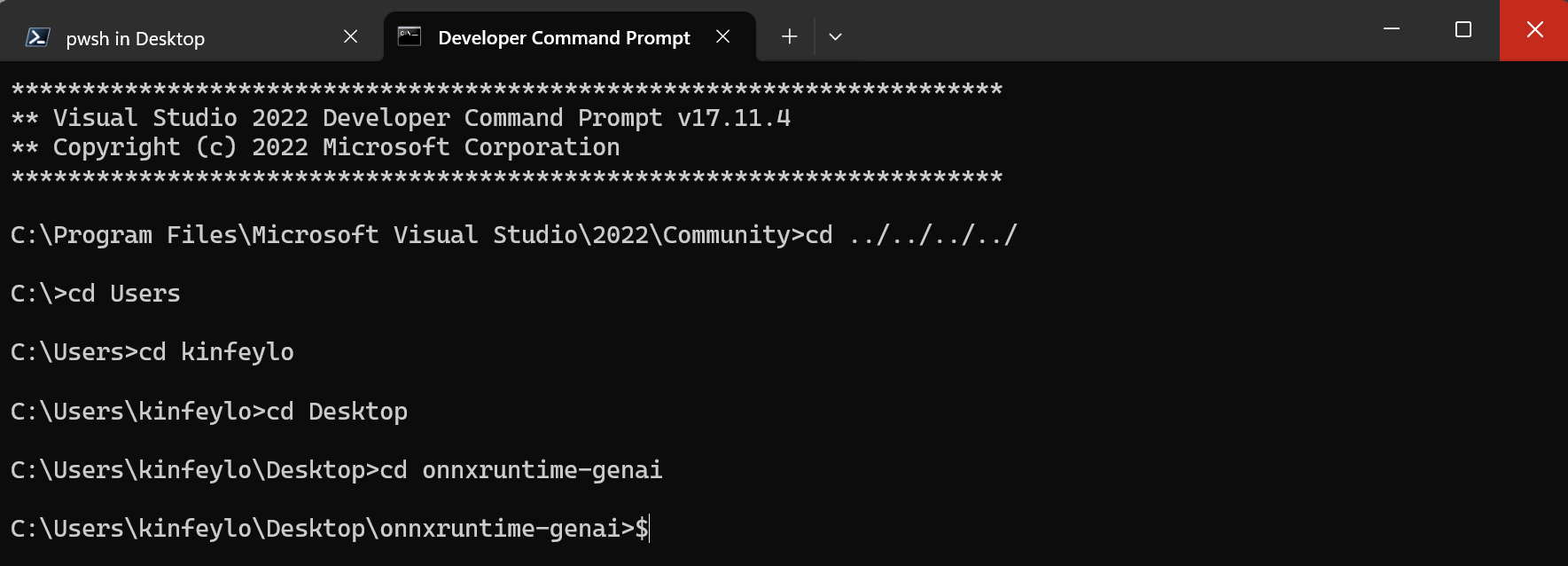
- Compile it with your python env
cd onnxruntime-genai

python build.py --use_cuda  --cuda_home "C:\Program Files\NVIDIA GPU Computing Toolkit\CUDA\v12.4" --config Release


cd build/Windows/Release/Wheel

pip install .whl